레이블이 Constraint인 게시물을 표시합니다. 모든 게시물 표시

2018년 5월 18일 금요일

[안드로이드] ConstraintLayout 1.1 새로운 기능 소개

ConstraintLayout 1.1 새로운 기능 소개

Percents

1.0에서는 뷰의 크기를 퍼센트로 지정하려면 가이드라인 2개를 이용하거나, ConstraintLayout 대신 PecentLayout을 이용해야만 가능했다. 1.1에서 추가된 속성을 이용하면 뷰의 크기를 쉽게 퍼센트로 지정할 수 있다.
퍼센트를 사용하려면 다음의 사항을 따라야 한다.
  • layout_width / layout_height를 0dp(MATCH_CONSTRAINT) 로 해야한다.
  • layout_constraintWidth_percent / layout_constraintHeight_percent를 이용한다.
    • 해당 속성의 값은 0 ~ 1 사이의 값이여야 한다.
<Button
    android:layout_width="0dp"
    android:layout_height="0dp"
    app:layout_constraintWidth_percent="0.7"
    app:layout_constraintHeight_percent="0.2" />

Chains

Chain 제약은 여러개의 뷰를 묶어 어떻게 공간에 배치할지를 정하는 조건이다.
Chain으로 묶으려면, 쌍방에 대한 제약조건을 걸면 된다. 수평 / 수직 방향 모두 가능하며, 배치 방법에는 다음의 3가지가 있다.
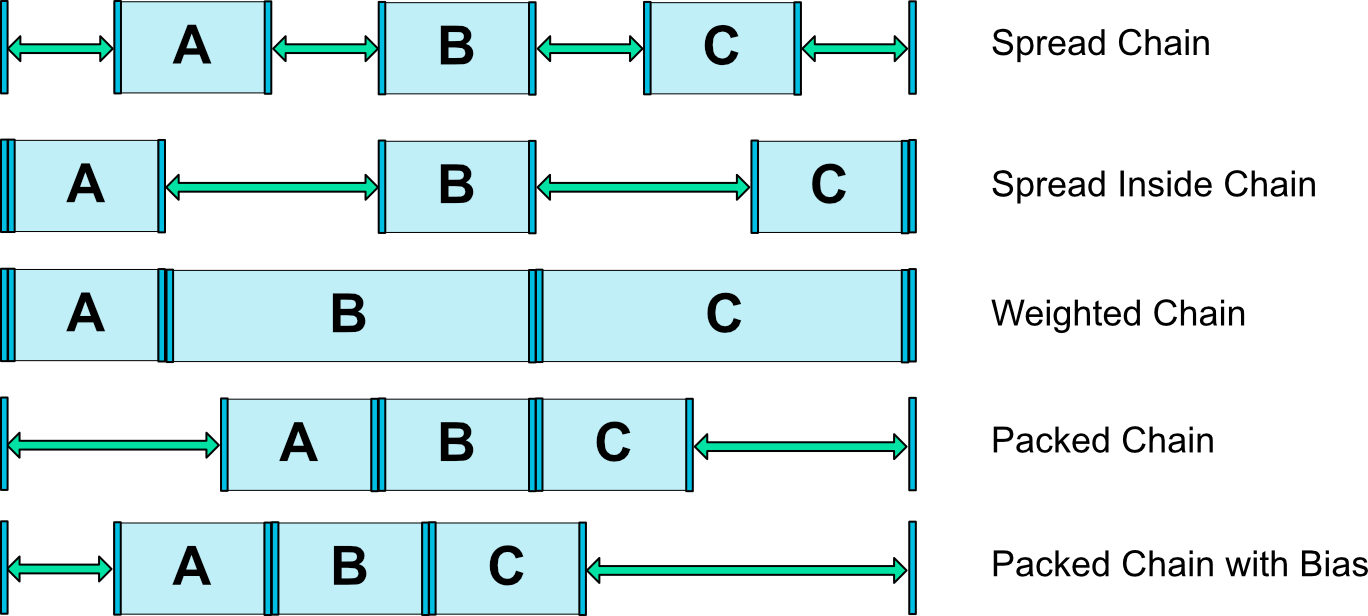

  • speard : 기본적인 배치이다. layout_constraintVertical_weight / layout_constraintHorizontal_weight 을 이용하면 LinearLayout의 layout_weight효과를 낼 수 있다.
  • spread_inside : 공간의 가장자리에 첫번째 부와 마지막 뷰가 배치되고, 남은 사이공간에 나머지 뷰들이 배치된다.
  • packed : 묶인 모든 뷰들이 공간의 가운데에 배치된다. bias 속성과 함꼐 사용하면 위치를 조절할 수 있다.

Barriers

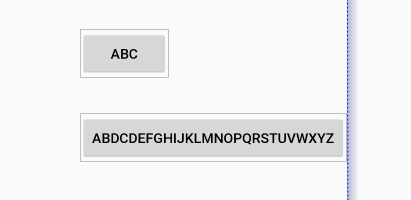
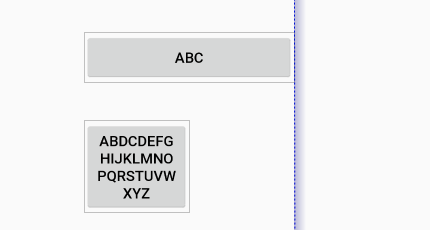
Barrier 라는 헬퍼 객체를 이용하여, 뷰들의 크기가 런타임으로 변할때에 적합한 제약조건을 생성할 수 있다.(객체라기보다는 가상의 그룹에 가깝다.) 해당 Barrier에 연관된 뷰들은 크기가 동적으로 변할 수 있고, 크기가 동적으로 변할 때, Barrier에 제약조건을 건 뷰들은 크기 / 위치가 Barrier에 맞게 변경된다. Barrier는 start, top, end, bottom중 하나의 위치로 지정될 수 있다. 해당 객체는 ConstraintLayout에 계층구조로 잡히지 않으며 렌더링되지 않는다.


<android.support.constraint.ConstraintLayout 
  xmlns:android="http://schemas.android.com/apk/res/android"
  xmlns:app="http://schemas.android.com/apk/res-auto"
  android:layout_width="match_parent"
  android:layout_height="match_parent">

  <TextView
    android:id="@+id/textView1"
    android:layout_width="wrap_content"
    android:layout_height="wrap_content"
    android:layout_marginStart="16dp"
    android:layout_marginTop="16dp"
    android:text="@string/warehouse"
    app:layout_constraintStart_toStartOf="parent"
    app:layout_constraintTop_toTopOf="parent" />

  <TextView
    android:id="@+id/textView2"
    android:layout_width="wrap_content"
    android:layout_height="wrap_content"
    android:layout_marginStart="16dp"
    android:layout_marginTop="8dp"
    android:text="@string/hospital"
    app:layout_constraintStart_toStartOf="parent"
    app:layout_constraintTop_toBottomOf="@+id/textView1" />

  <android.support.constraint.Barrier
    android:id="@+id/barrier7"
    android:layout_width="wrap_content"
    android:layout_height="wrap_content"
    app:barrierDirection="end"
    app:constraint_referenced_ids="textView2,textView1" />

  <TextView
    android:id="@+id/textView3"
    android:layout_width="0dp"
    android:layout_height="wrap_content"
    android:layout_marginStart="8dp"
    android:text="@string/lorem_ipsum"
    app:layout_constraintStart_toEndOf="@+id/barrier7"
    app:layout_constraintTop_toTopOf="parent" />

</android.support.constraint.ConstraintLayout>

Group

Group이라는 헬퍼 객체를 이용해, 몇몇 뷰들을 그룹화 할 수 있다. 그룹화 함으로써 얻는 장점은, visibility 등의 동시적인 작업이 필요할때, 해당 그룹을 이용하여 작업을 수행하면 그룹안의 뷰들에게 전체적으로 적용된다. 해당 객체는 ConstraintLayout에 계층구조로 잡히지 않으며 렌더링되지 않는다.
<android.support.constraint.Group
    android:id="@+id/profile"
    app:constraint_referenced_ids="profile_name,profile_image" />
profile.setVisibility(View.VISIBLE);

Circular Constraints

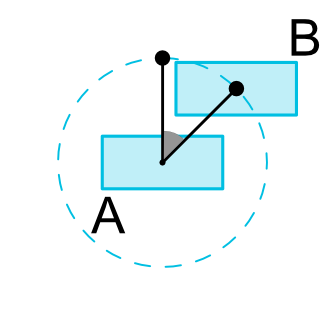
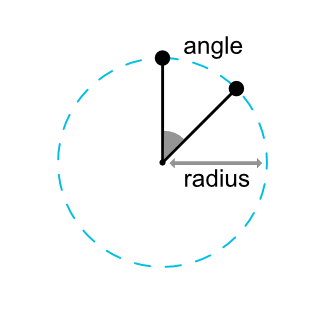
기존의 대부분 레이아웃이 수평 / 수직의 배치만 지원한 것에 비해, 원형의 배치를 지원하게 되었다. 원형 배치를 구현하려면 다음을 수행한다.
  • layout_constraintCircle속성에 구심점이 될 뷰를 지정한다.
  • layout_constraintCircleRadius속성에 구심점으로부터의 거리를 지정한다.(반지름)
  • layout_constraintCircleAngle속성에 0 ~ 360 사이의 각도값을 지정한다. 12시 방향이 0도이고, 시계방향으로 각도가 늘어난다.
<android.support.design.widget.FloatingActionButton
    android:id="@+id/middle_expanded_fab"
    app:layout_constraintCircle="@+id/fab"
    app:layout_constraintCircleRadius="50dp"
    app:layout_constraintCircleAngle="315" />


ConstraintSet을 이용한 애니메이션

ConstraintSet을 이용하면 여러개의 뷰들을 한번에 애니메이셔닝 할 수 있다. ConstraintSet은 ConstraintLayout에서의 제약조건들만 가지고 있고, 해당 제약조건들을 ConstraintLayout에 지정함으로써 제약조건들을 갱신할 수 있다.
애니메이션을 수행하려면, TransitionManager.beginDelayedTransition() API를 이용한다. 이 메서드는 ConstraintSet의 모든 레이아웃의 변경사항을 애니메이션으로 수행한다.
해당 기능에 대해 설명한 비디오
https://www.youtube.com/watch?v=OHcfs6rStRo&feature=youtu.be

New Optimizations

ConstraintLayout안의 불필요한 제약조건들을 줄여서, 레이아웃 속도를 빠르게 해주는 최적화 레벨을 지정할 수 있다. layout_optimizationLevel 속성에 레벨을 지정하여 최적화 레벨을 지정한다. 최적화레벨은 다음의 5가지가 존재한다.
  • barriers : Barrier 제약조건에 관련하여 최적화
  • direct : 고정된 요소(예 : parent, Guideline)에 연결된 제약조건에 관련하여 최적화
  • standard : barriers, direct를 포함한 기본 최적화 레벨
  • dimensions : 뷰 크기에 관련된 부분을 최적화 - 해당 옵션은 현재 테스트중이며 이슈 발생의 소지가 있다.
  • chains : 고정된 크기의 뷰를 체이닝할때의 최적화 - 해당 옵션은 현재 테스트중이며 이슈 발생의ㅏ 소지가 있다.
<android.support.constraint.ConstraintLayout 
    app:layout_optimizationLevel="standard|dimensions|chains"

참고링크

  • http://dktfrmaster.blogspot.kr/2016/09/constraintlayout.html
  • https://developer.android.com/reference/androidx/constraintlayout/widget/ConstraintLayout

2016년 9월 27일 화요일

[안드로이드] ConstraintLayout 사용하기

1.1 업데이트 내용

* http://dktfrmaster.blogspot.kr/2018/05/constraintlayout-11.html

ConstraintLayout

ConstraintLayout은 위젯(뷰)의 위치, 크기를 유연한 방법으로 배치하도록 하는 ViewGroup의 서브클래스이다. 현재로써는, 다음과 같은 제약조건을 이용할 수 있다.
  • Relative Positioning
  • Margins
  • Centering Positioning
  • Visibility Behavior
  • Dimension Constraint
  • Virtual Helpers Objects
참고로, 제약조건은 순환관계를 가질 수 없다.
Note : 이 레이아웃은 Support 라이브러리로 지원되며, API 9(진저브레드) 이상부터 이용할 수 있다. 안드로이드 팀은 이 레이아웃에 더 많은 기능을 추가할 예정이며, 바뀐 내용은 이 문서에 반영될 것이다.

개발 가이드

Relative Positioning (기존의 RelativeLayout과 유사)

Relative Positioning은 ConstraintLayout에서의 기본적인 레이아웃 배치 중 하나이다. 이 제약조건은 어떤 위젯을 다른 위젯에 상대적으로 배치할 수 있도록 한다. 이 제약조건은 위젯의 수직,수평을 기준으로 추가한다.
  • 수직 : Left, Right, Start, End
  • 수평 : Top, Bottom
즉, 이 개념은 위젯의 한 사이드를 다른 위젯의 사이드에 상대적으로 배치하는 것이다.
다음 예시는 버튼 B를 버튼 A의 오른쪽에 배치하는 과정이다.
ConstraintLayout
<Button android:id="@+id/buttonA" ... />
<Button android:id="@+id/buttonB" ...
         app:layout_constraintLeft_toRightOf="@+id/buttonA" />
이는 버튼 B의 왼쪽 사이드를 버튼 A의 오른쪽 사이드에 배치되도록 제약조건을 시스템에 알려주는 것이다.
위치 제약조건은 시스템이 각 위젯의 사이드를 같은 위치가 되도록 배치할 것이다.

ConstraintLayout
다음과 같은 위치 제약조건이 가능하다.
  • layout_constraintLeft_toLeftOf
  • layout_constraintLeft_toRightOf
  • layout_constraintRight_toLeftOf
  • layout_constraintRight_toRightOf
  • layout_constraintTop_toTopOf
  • layout_constraintTop_toBottomOf
  • layout_constraintBottom_toTopOf
  • layout_constraintBottom_toBottomOf
  • layout_constraintBaseline_toBaselineOf
  • layout_constraintStart_toEndOf
  • layout_constraintStart_toStartOf
  • layout_constraintEnd_toStartOf
  • layout_constraintEnd_toEndOf
위의 제약조건들은 기준이 될 위젯의 id가 필요하다. 혹은 부모를 의미하는 parent를 입력한다.
<Button android:id="@+id/buttonB" ...
         app:layout_constraintLeft_toLeftOf="parent" />

Margins

ConstraintLayout

마진이 설정되면, 해당 뷰와 타겟 뷰 사이에 강제적으로 여백이 생기고, 이에 해당하는 제약조건이 생길 것이다. 기존에 사용했던 마진을 주는 방법으로 제약조건을 추가할 수 있다.
  • android:layout_marginStart
  • android:layout_marginEnd
  • android:layout_marginLeft
  • android:layout_marginTop
  • android:layout_marginRight
  • android:layout_marginBottom

Gone 상태의 위젯에 연결되었을때의 Margin

  • 위치 제약조건의 대상이 View.GONE 상태일 때, 기존의 마진과는 다른 마진값을 적용할 수 있다. 이 값을 적용하려면 다음의 속성들을 이용한다.
  • layout_goneMarginStart
  • layout_goneMarginEnd
  • layout_goneMarginLeft
  • layout_goneMarginTop
  • layout_goneMarginRight
  • layout_goneMarginBottom

Centering positioning and bias

ConstraintLayout은 불가능한 제약조건을 잘 처리할 수 있기 때문에 유용하다. 예를 들어, 다음과 같은 상황이 있을 수 있다.
<android.support.constraint.ConstraintLayout ...>
             <Button android:id="@+id/button" ...
                 app:layout_constraintLeft_toLeftOf="parent"
                 app:layout_constraintRight_toRightOf="parent/>
         </>
이 상황에서, ConstraintLayout이 버튼과 동일한 수평사이즈가 아니라면, 두 제약조건은 동시에 만족하지 않는다.(버튼의 양 사이드는 우리가 의도한 곳에 놓이지 않는다) 이런 경우에, 제약조건은 다음 그림과 같이 버튼을 양쪽 끝에서 같은 힘으로 당기는 것처럼 동작한다. 결과적으로, 버튼은 부모 컨테이너의 중앙에 놓이게 된다. 이는 수직의 제약조건에서도 유사하게 적용된다.
ConstraintLayout

Bias

위에서 살펴본 바와 같이, 기본적으로 상반되는 두 제약조건의 결과는 위젯을 중앙에 배치시킨다. 하지만, bias라는 속성을 이용해 어느 한쪽에 더 가깝도록 위젯을 배치할 수 있다. 그 속성은 다음과 같다.
  • layout_constraintHorizontal_bias
  • layout_constraintVertical_bias
다음의 예제는 A 위젯을 기존의 50% 중앙 위치 대신, 30%인 왼쪽으로 기울도록 배치할 것이다.
<android.support.constraint.ConstraintLayout ...>
             <Button android:id="@+id/button" ...
                 app:layout_constraintHorizontal_bias="0.3"
                 app:layout_constraintLeft_toLeftOf="parent"
                 app:layout_constraintRight_toRightOf="parent/>
         </>
이처럼, bias를 잘 사용하면 UI를 스크린 크기의 변화에 더 잘 배치되도록 UI를 변경할 수 있다.

Visibility Behavior

ConstraintLayout은 위젯이 View.GONE 상태일때를 특별하게 다룰 수 있다. 일반적으로, GONE 위젯은 화면에 보여지지 않고, 레이아웃의 일부가 아니다.(즉, 실제 Dimension이 변하지 않는다.) 그러나, 레이아웃의 제약조건 관점에서, GONE 위젯은 여전히 레이아웃의 일부이다.(이는 중요한 특징이 있다.)
  • GONE 위젯의 크기는 0으로 처리된다.
  • 다른 위젯이 GONE 위젯에 제약조건을 걸었을 때, 그 제약조건은 여전히 유효하지만, GONE된 위젯의 마진은 0으로 처리된다.
ConstraintLayout
위의 그림에서 보듯이, 이런 특별한 동작은 B의 레이아웃을 깨지 않고도, A를 GONE시켜서 임시 레이아웃을 유지할 수 있다.
Note : 위의 그림처럼 B가 A에 제약조건을 걸고 마진값을 가지고 있는 상태에서, A가 GONE이 되면 A의 마진값도 0이 되고, 그림처럼 B는 자신이 A에 걸었던 마진값만 남게 된다. 제약조건을 걸었던 위젯의 GONE 여부에 따라 대체하는 마진값을 주기 위해, 위에서 소개했던 Gone margin값을 이용한다.

Dimensions 제약조건

android:layout_widthandroid:layout_height 속성을 이용해서, 다음의 3가지 방법으로 위젯의 크기를 지정할 수 있다.
  • 특정 크기(123dp@dimen/height)
  • wrap_content 위젯 자신이 크기를 결정
  • 0dp - match_constraint와 동일
ConstraintLayout
처음의 두 방법은 다른 레이아웃과 동일하게 동작한다. 마지막 방법은 위젯이 제약조건에 맞춰서 리사이징 될 것이다. 위의 그림에서, (a)는 wrap_content, (b)는 0dp, (c)는 마진값이 있을 때의 0dp 이다.

Ratio

위젯 크기는 수평:수직의 비율로도 정할 수 있다. 비율로 크기를 정하려면, width/height를 0dp(or match_constraint)로 지정하고 layout_constraintDimensionRatio 속성을 이용해 수평:수직 비율값을 준다. 다음의 예시는 수평:수직 비율을 1:1로 준 것이다.
<Button android:layout_width="wrap_content"
               android:layout_height="0dp"
               app:layout_constraintDimensionRatio="1:1" />
비율은 다음과 같이 2가지 방법으로 표현될 수 있다.
  • width와 height의 비율을 나타내는 소수값
  • width : height비율
수평과 수직이 모두 match_constraint(0dp) 일 때도 비율로 나타낼 수 있다. 단, 이 때는 layout_constraintDimensionRatio 속성에 W or H를 명시하여 변경될 사이드를 지정해 주어야 한다. ( W는 수평, H는 수직) 사이드 구분자는 , 쉼표로 비율과 구분한다.
<Button android:layout_width="0dp"
               android:layout_height="0dp"
               app:layout_constraintDimensionRatio="H,16:9"
               app:layout_constraintBottom_toBottomOf="parent"
               app:layout_constraintTop_toTopOf="parent"/>
다음의 예제는 버튼의 width가 제약조건에 맞게 늘어나고, height는 16:9 비율로 리사이즈 될 것이다.

Vertual Helper Object

지금까지 설명된 위의 내용 이외에도, ConstraintLayout에서 레이아웃을 쉽게 배치할 수 있도록 하는 헬퍼 클래스가 있다. Guideline 클래스는 ConstraintLayout 내에 상대적으로 배치됬을 때, 수평 or 수직적인 가이드 라인을 생성해준다. 개발자는 그 가이드라인의 제약조건대로 위젯을 배치하면 된다.

Guideline

ConstraintLayout의 제약조건을 쉽게 설정하도록 도와주는 헬퍼클래스로, 이 객체는 화면에 나타나지 않고,(이 객체들은 View.GONE 상태이다.) 오로지 레이아웃을 위해 사용된다. 이 객체들은 ConstraintLayout 안에서만 사용된다.
Guideline 객체는 수평, 수직이 될 수 있다.
  • 수직 Guideline은 width가 0이고, height는 ConstraintLayout과 같다.
  • 수평 Guideline은 height가 0이고, width는 ConstraintLayout과 같다.
Guideline 객체의 위치는 다음의 3가지가 가능하다.
  • Left(수평일 경우) or Top(수직일 경우) 로부터 고정된 거리 - layout_constraintGuide_begin
  • Right(수평일 경우) or Bottom(수직일 경우) 로부터 고정된 거리 - layout_constraintGuide_end
  • ConstraintLayout의 width or height에 대한 퍼센트 위치 - layout_constraintGuide_percent
Guideline 객체를 이용하여 다른 위젯을 쉽게 배치할 수 있고, 위젯이 Guideline 객체에 제약조건을 추가할 수 있다. xml에서는 다음의 예시와 같이 사용할 수 있다.
<android.support.constraint.ConstraintLayout
        xmlns:android="http://schemas.android.com/apk/res/android"
        xmlns:app="http://schemas.android.com/apk/res-auto"
        xmlns:tools="http://schemas.android.com/tools"
        android:layout_width="match_parent"
        android:layout_height="match_parent">

    <android.support.constraint.Guideline
            android:layout_width="wrap_content"
            android:layout_height="wrap_content"
            android:id="@+id/guideline"
            app:layout_constraintGuide_begin="100dp"
            android:orientation="vertical"/>

    <Button
            android:text="Button"
            android:layout_width="wrap_content"
            android:layout_height="wrap_content"
            android:id="@+id/button"
            app:layout_constraintLeft_toLeftOf="@+id/guideline"
            android:layout_marginTop="16dp"
            app:layout_constraintTop_toTopOf="parent" />

</android.support.constraint.ConstraintLayout>

ConstraintSet

위에 소개된 방법들은, 모두 xml에서의 적용방법이다. ConstraintSet 클래스의 객체를 이용하면 제약조건을 소스코드에서 변경할 수 있다. 이 클래스는 몇가지의 생성 방법이 있다.
  • Manually
ConstraintSet c = new ConstraintSet();
c.connect(...);
  • R.layout.* 로부터
ConstraintSet c = c.clone(context, R.layout.some_layout);
  • ConstraintLayout 으로부터
c.clone(cLayout);